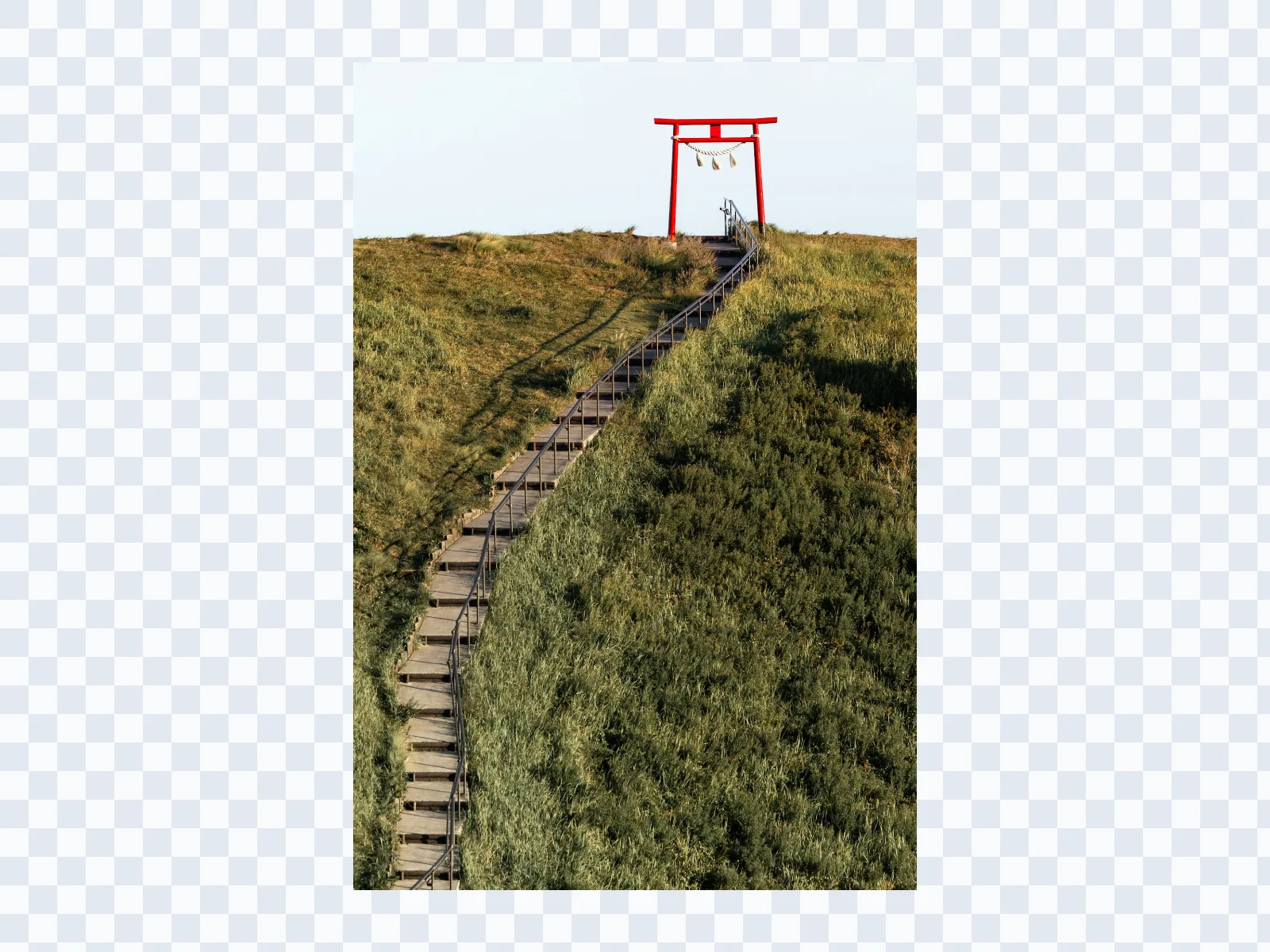
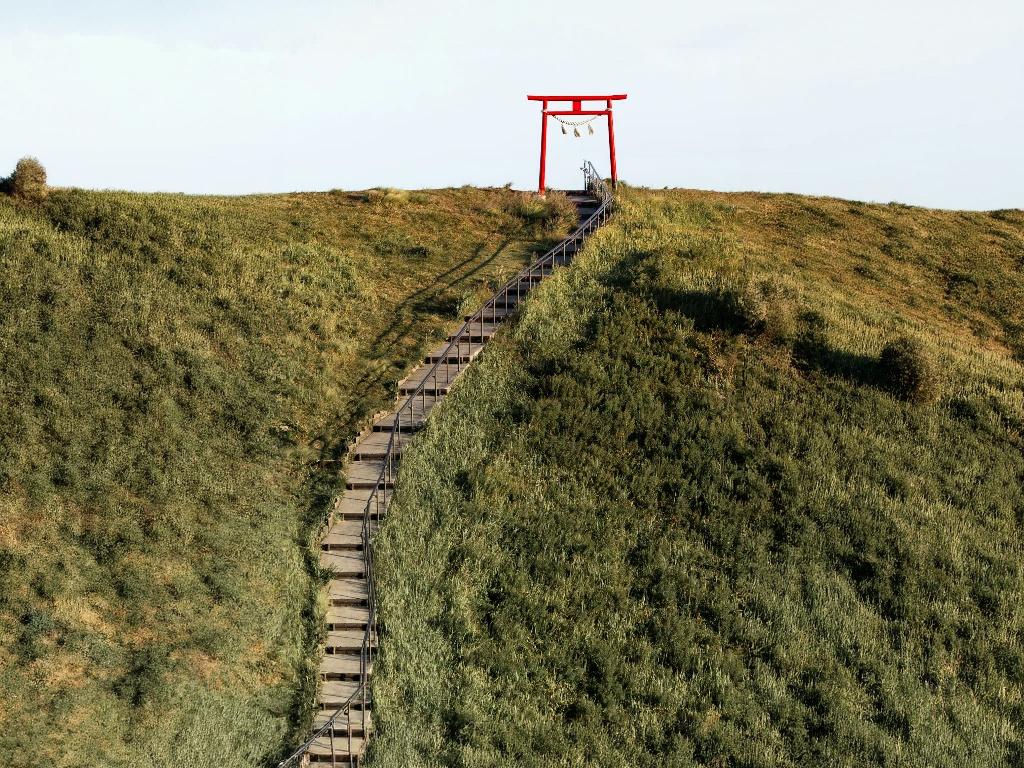
AI Outpainting for Natural Background Extension

Use AI outpainting to extend the canvas, generate more background, and create extra room for banners, posters, ads, and redesigned compositions.

Before
After
Before
After

Upload an image for outpainting

Supported formats:JPGPNGWEBP
No image? Try these:

Outpainting AI

How to use AI outpainting in four steps

Upload the source, define the wider frame, generate the new background, and compare the extended canvas before export.

01

Upload your source image

Choose the image you want to extend. JPG, PNG, and WebP files are supported.

02

Set the new canvas

Pick the output ratio and position the image so the model knows where new background should appear.

03

Generate the outpainted result

Click Generate to let the model continue the scene beyond the original borders.

04

Review and download

Compare the original and expanded versions, then download the final AI outpainting output.

AI outpainting that expands scenes instead of just resizing them

This page is built for outpainting AI use cases where you want to generate more environment, more negative space, and more usable canvas around an existing image.

AI outpainting

Generate a larger scene around the original image

AI outpainting analyzes the source image and creates new pixels outside its existing borders. That makes it useful when you want the result to feel like a wider shot rather than a simple resize.
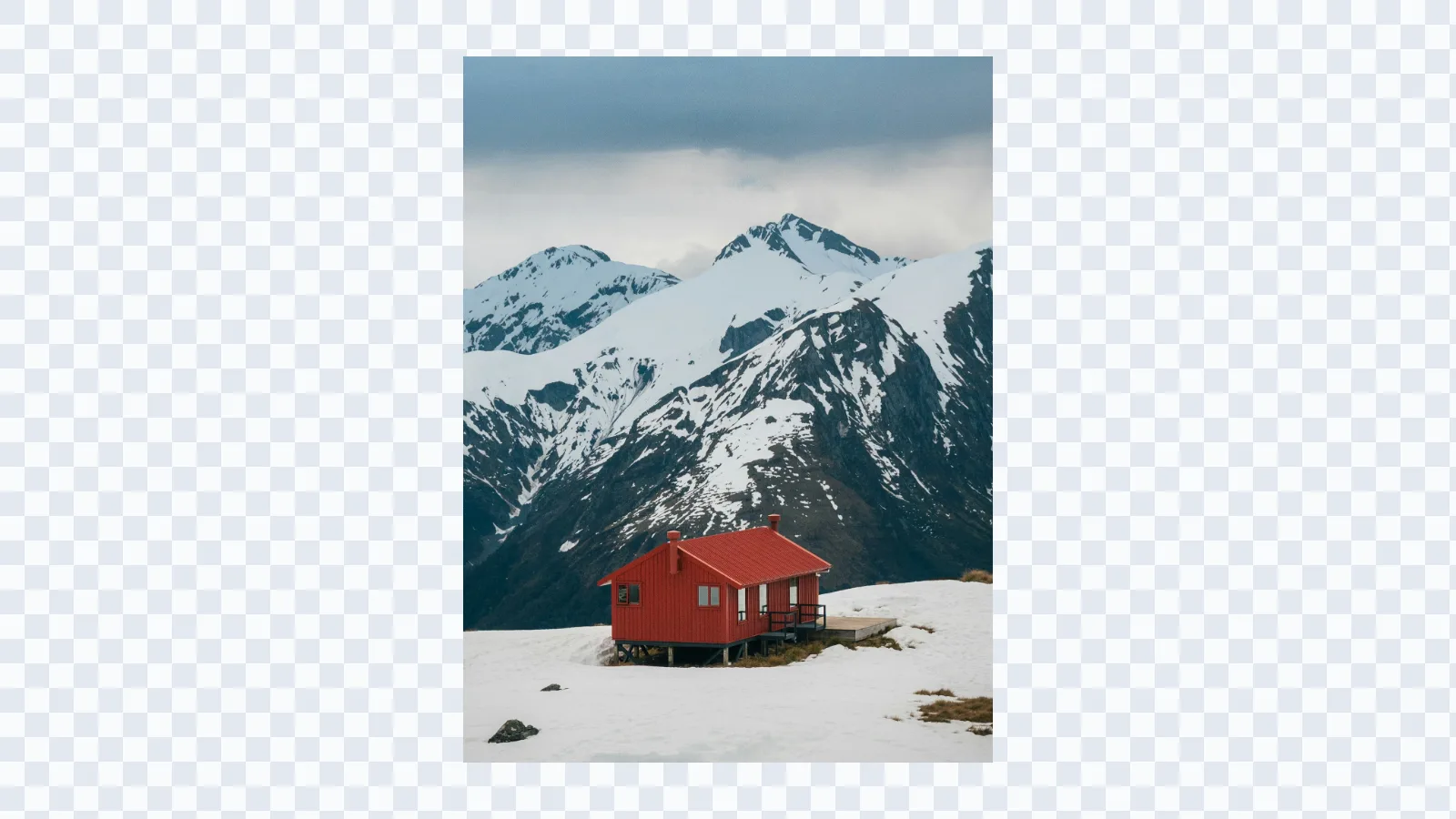
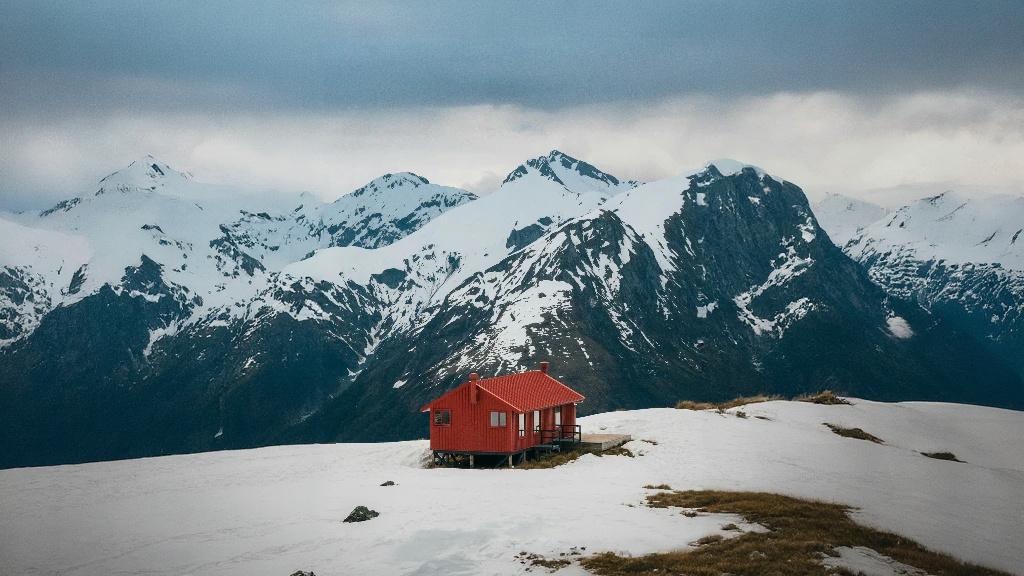
Snow cabin image before AI outpainting extends the mountain scene
Snow cabin image after AI outpainting extends the mountain scene

AI outpainting

Create layout space for banners, ads, and posters

Outpainting AI is especially useful for creative work that needs extra breathing room. Expand the environment so headlines, logos, and calls to action can fit without covering the main subject. If your goal is edge recovery rather than scene building, start with uncrop image.

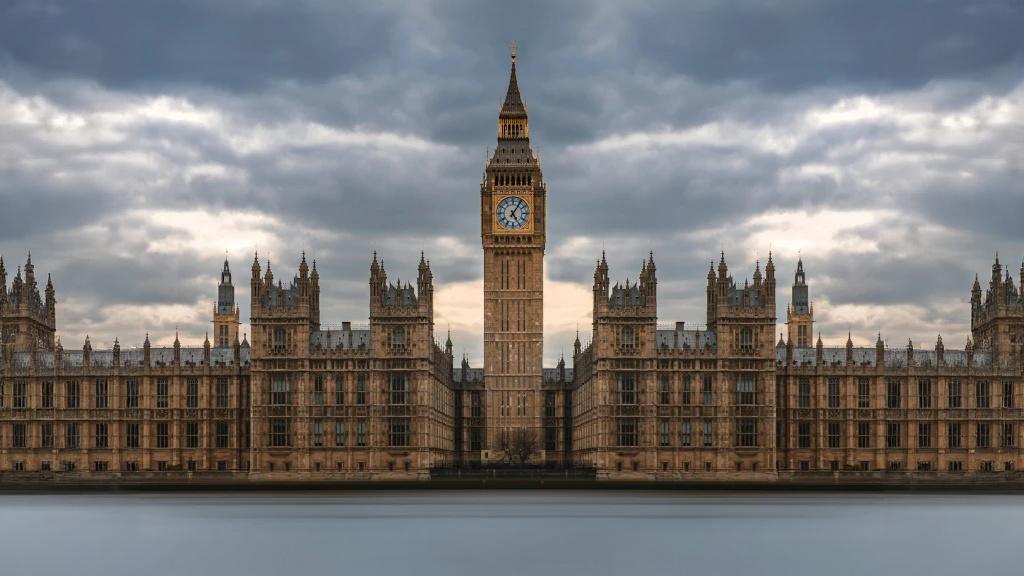
Big Ben image before AI outpainting expands the canvas
Big Ben image after AI outpainting expands the canvas

AI outpainting

Extend backgrounds while matching style and perspective

A strong AI outpainting result keeps the original lighting, camera angle, and texture direction coherent. The goal is not only more canvas, but background continuation that still belongs to the same image.
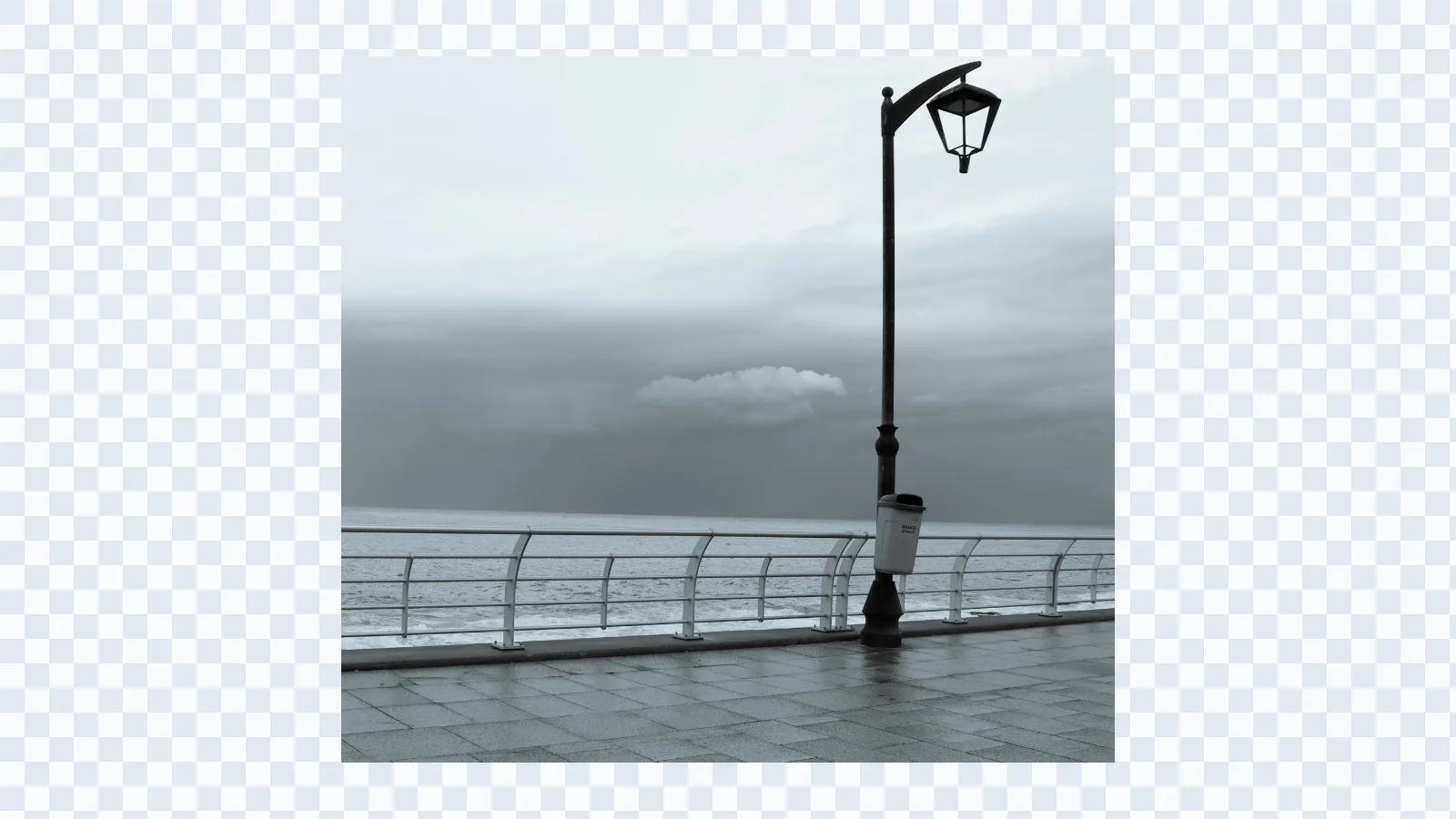
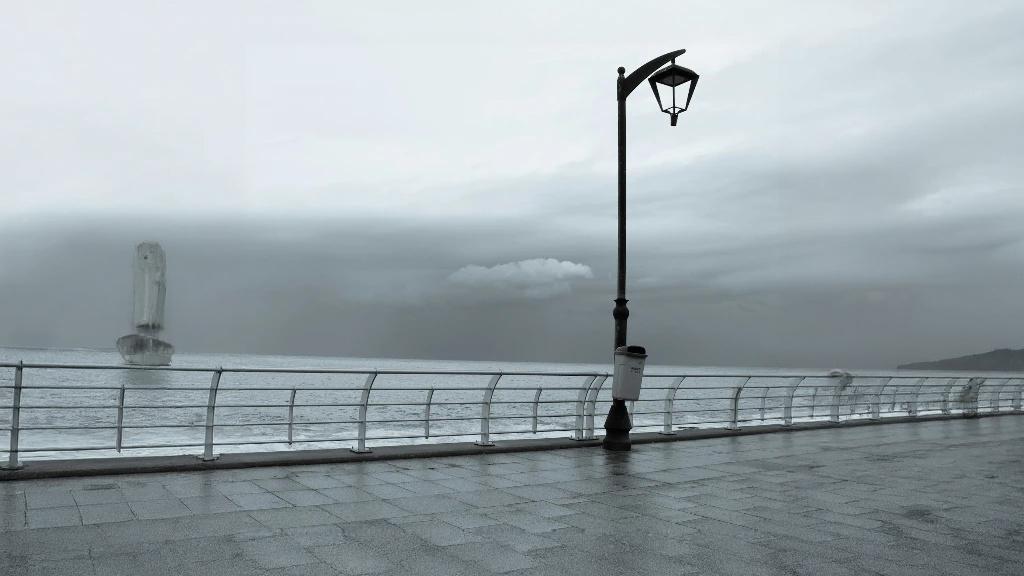
Seaside promenade image before AI outpainting adds more surrounding atmosphere
Seaside promenade image after AI outpainting adds more surrounding atmosphere

AI outpainting

Use one editor for free tests and Pro-quality outputs

Start with the standard model when you want to test outpainting AI free style workflows, then switch to Expand Pro when you need larger expansions and stronger consistency for production assets. For a simpler general workflow, return to AI Expand Image.
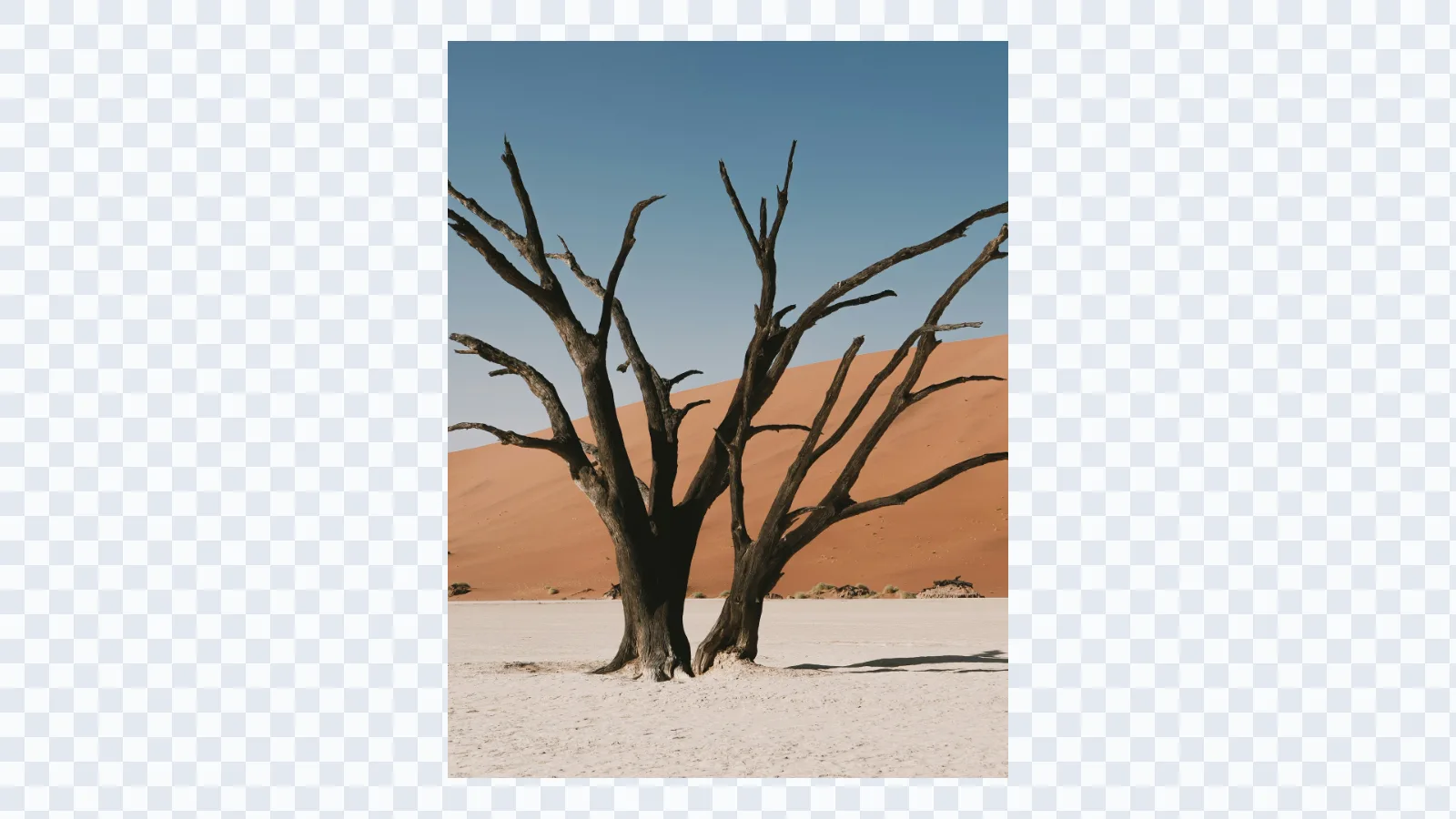
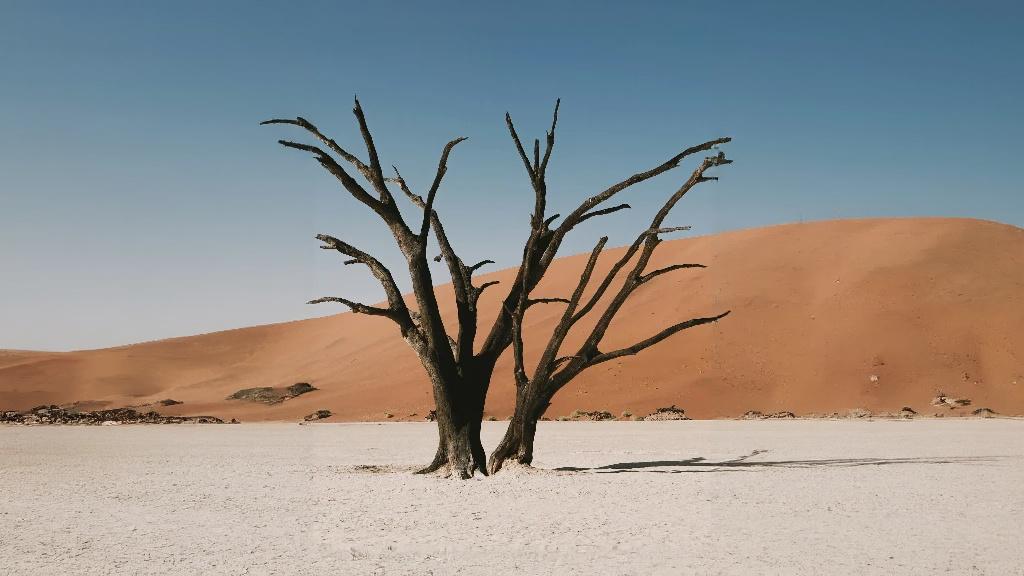
Desert tree image before AI outpainting creates more background space
Desert tree image after AI outpainting creates more background space

Use cases

Where outpainting AI adds the most value

Outpainting AI is best when you need the image to grow into a larger composition, not just recover a slightly tighter crop.

  • Creative photo extension

    Turn a normal shot into a wider cinematic frame by generating more sky, ground, architecture, or environmental detail around it.

  • Marketing and product campaigns

    Add surrounding scene context and negative space for launches, ads, and storefront creatives without rebuilding the artwork manually.

  • Poster and large-format design

    Expand the canvas for print layouts that need a broader composition and more room for supporting text or branding.

  • Video thumbnails and social assets

    Adapt images to wide, square, or vertical outputs by generating more background instead of sacrificing the subject with cropping.

  • Scene-building for spaces

    Extend outdoor and indoor surroundings to create wider-feeling hero visuals for listings, brochures, and property marketing.

  • Web banners and advertising layouts

    Use AI outpainting to create space for navigation, copy, and CTA modules while preserving the original visual focal point.

Start outpainting

Upload an image and expand it into a larger scene.

Set the frame, choose how much canvas you want to add, and generate an AI outpainting result that is ready for creative layouts.

AI Outpainting FAQ

Answers to common questions about outpainting AI, canvas extension, and free vs. Pro workflows.