Uncrop Image with AI to Restore Missing Edges

Use AI to uncrop image compositions that feel too tight. Restore missing space around portraits, products, and landscapes without rebuilding the scene by hand.

Before
After
Before
After

Upload an image to uncrop

Supported formats:JPGPNGWEBP
No image? Try these:

AI uncrop image

How to uncrop image in four steps

Upload the cropped photo, set the new frame, generate the recovery, and compare the result before download.

01

Upload a cropped image

Start by uploading the photo that needs more surrounding space. JPG, PNG, and WebP are supported.

02

Choose a ratio and place the subject

Pick the output shape, then drag the image so the AI knows which edges need to be rebuilt.

03

Generate the uncrop image result

Click Generate to extend the missing border area while preserving the original subject and style.

04

Compare and download

Review the before and after view, then download the uncropped version when it matches your layout needs.

Uncrop image results that rebuild the frame naturally

This uncrop image workflow is designed for photos that were framed too tightly. Recover headroom, side space, and background continuity without making the subject look replaced.

Uncrop image

Restore photos that feel cut off

Use uncrop image AI to add believable space around portraits, travel shots, and product photos that lost context at the edges. The tool extends the frame so the original composition feels complete again.
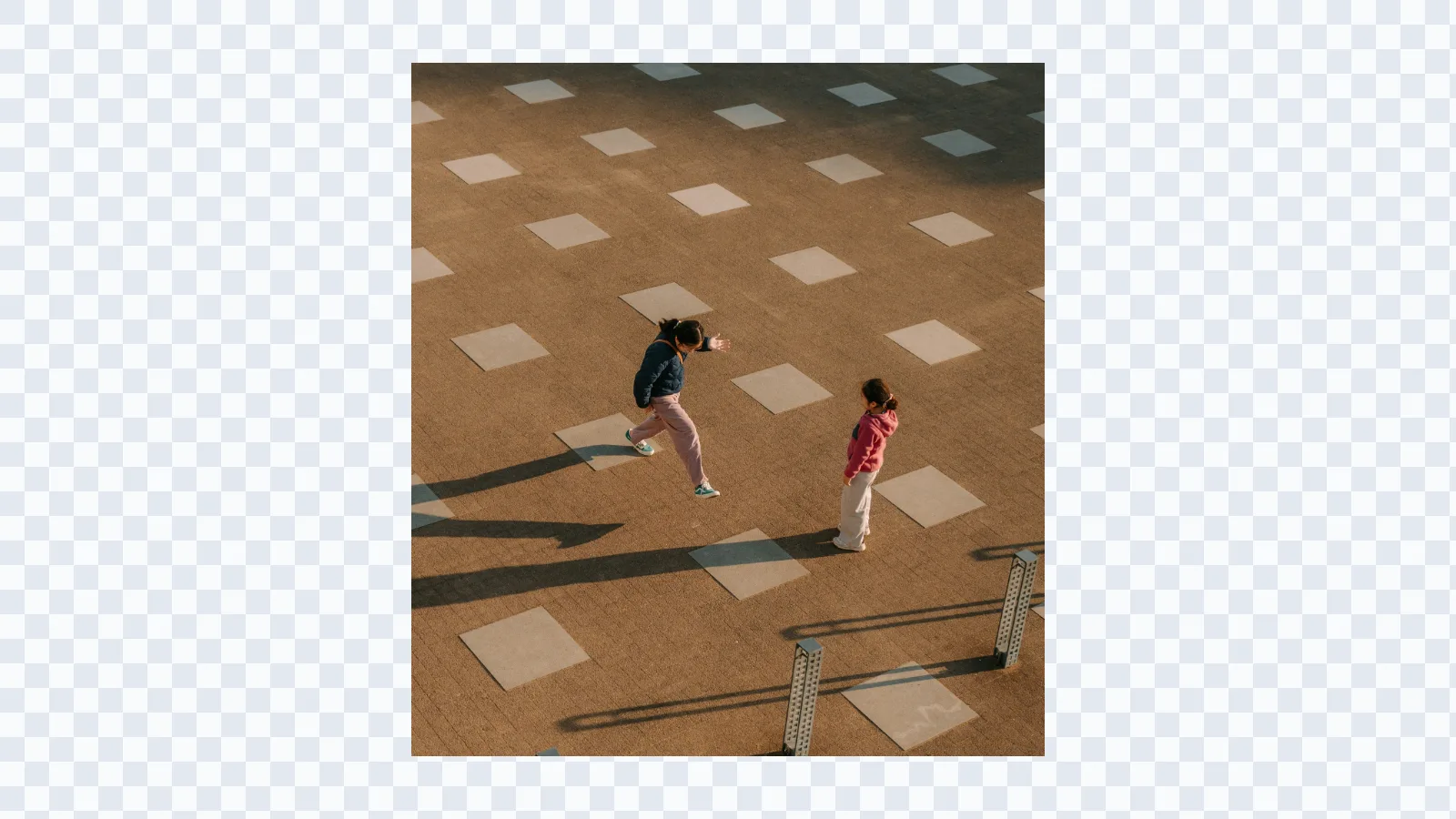
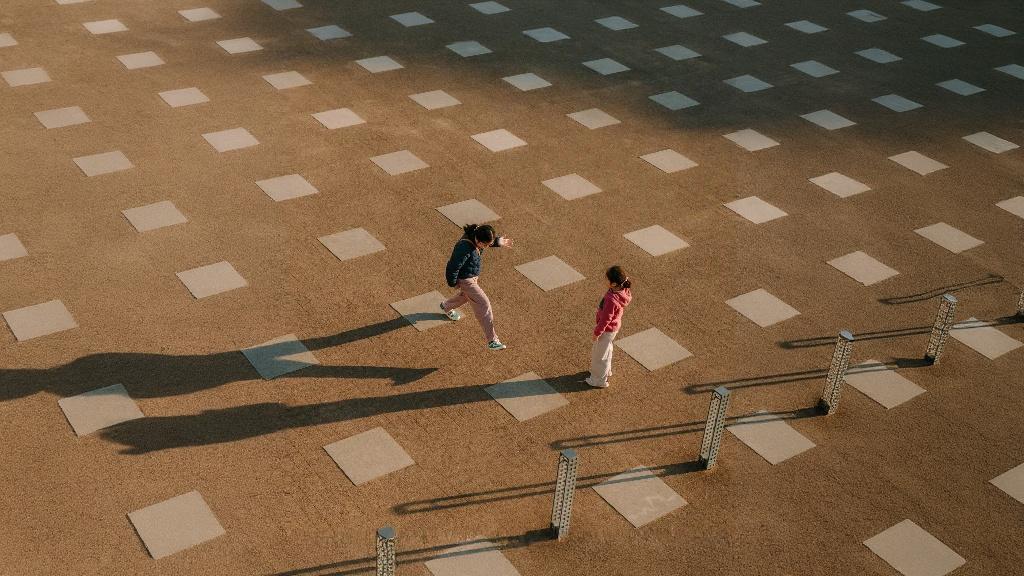
Tightly cropped plaza scene before uncrop image editing restores more surrounding space
Plaza scene after uncrop image editing restores more surrounding space

Uncrop image

Recover room for print, covers, and social formats

A tight crop often breaks when you need a new ratio. Uncrop image outputs help you rebuild top, bottom, left, or right margins so one source photo can fit posters, thumbnails, and vertical posts.
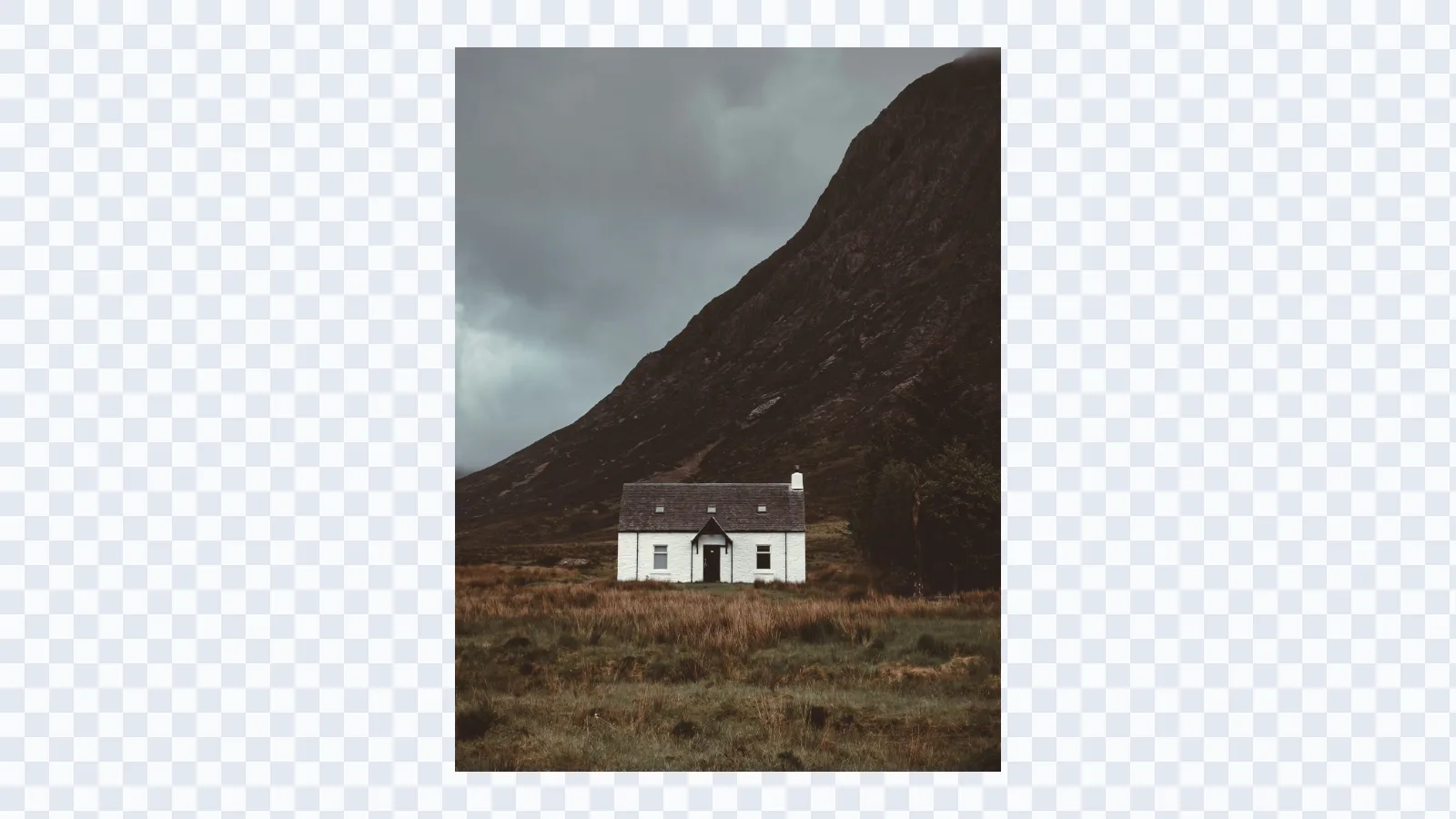
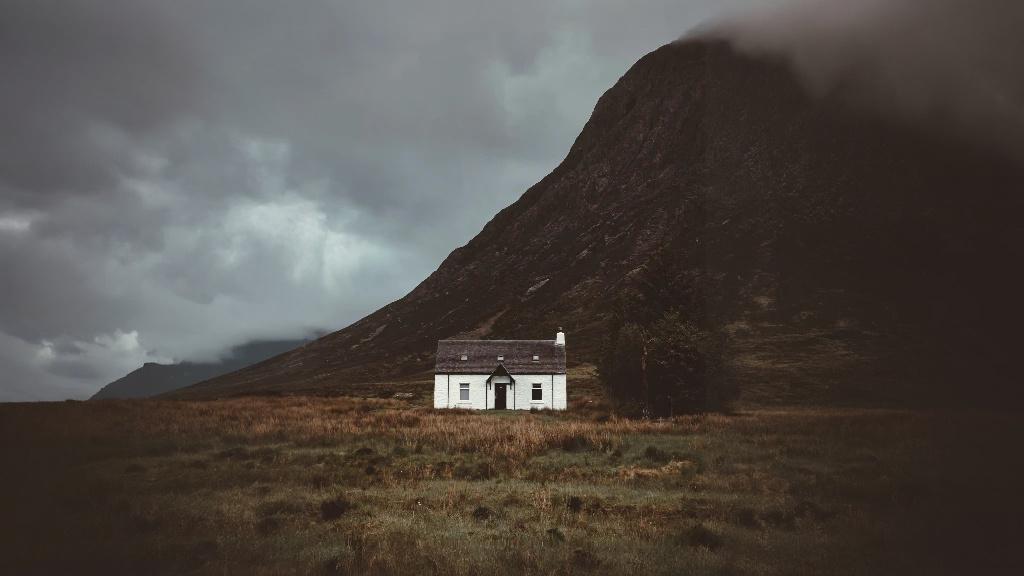
Tightly framed mountain cottage photo before uncrop image processing
Mountain cottage photo after uncrop image processing adds natural surrounding landscape

Uncrop image

Keep the subject intact while restoring the border

The model focuses on extending the missing surroundings instead of redesigning the center of the image. That makes it useful when you want to recover cropped edges without changing faces, products, or the main focal point. If you need a broader canvas extension workflow focused on generated backgrounds, see AI outpainting.
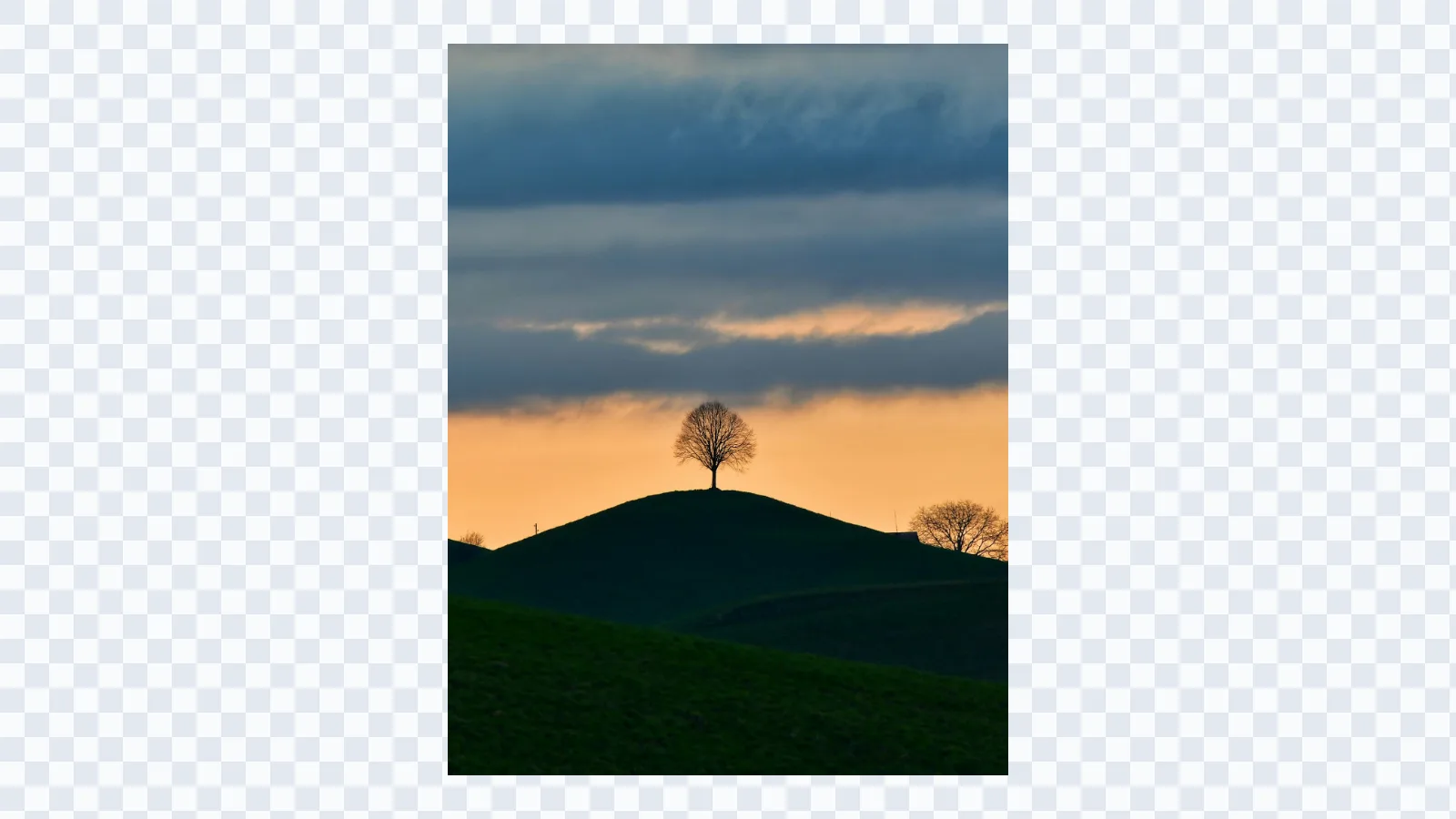
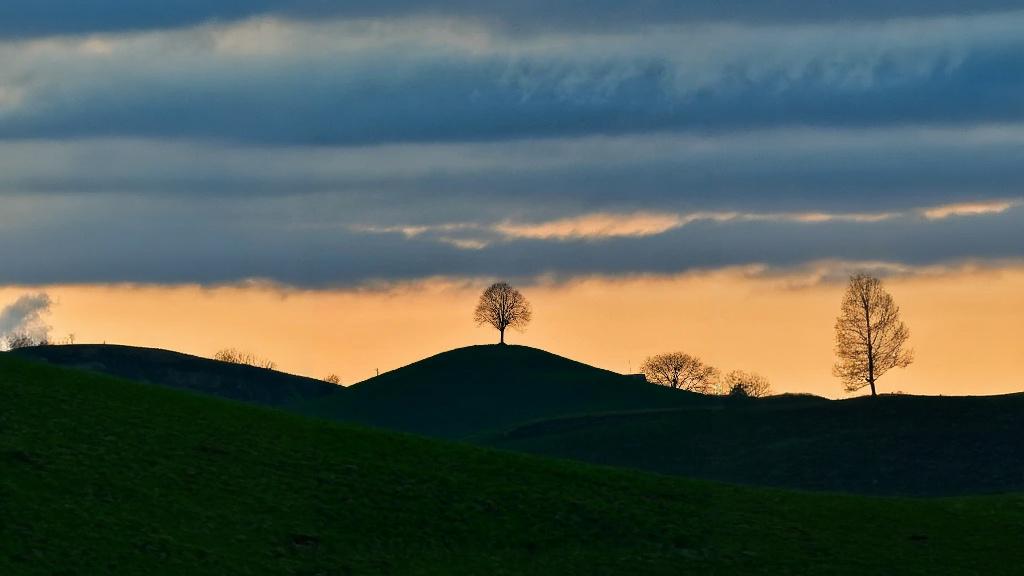
Cropped hill tree landscape before uncrop image reconstruction
Hill tree landscape after uncrop image reconstruction extends the frame naturally

Uncrop image

Frame the recovery before you generate

Choose the ratio, drag the source image into place, and decide where the missing space should be rebuilt. This lets you control whether the uncrop image result adds headroom, side breathing room, or a wider scene. If you need a broader all-purpose workflow, go back to AI Expand Image.

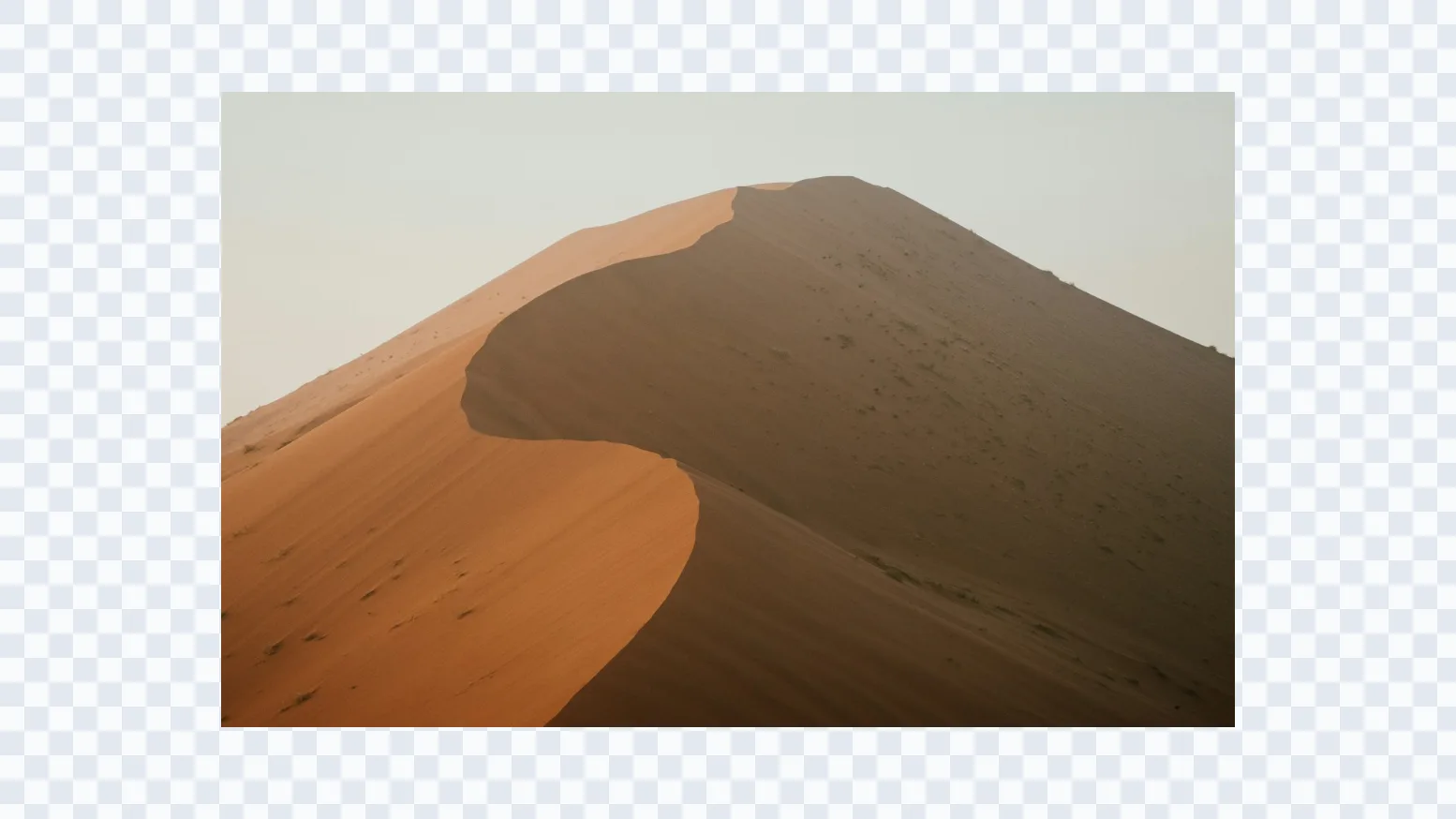
Close-cropped sand dune photo before uncrop image expansion
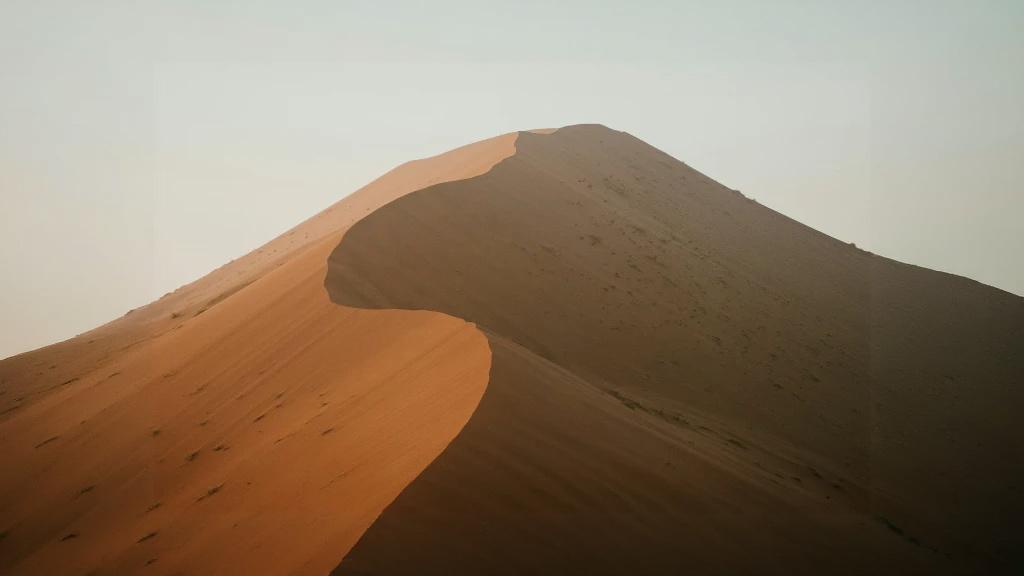
Sand dune photo after uncrop image expansion adds missing canvas

Use cases

Where AI uncrop image works best

AI uncrop image is most useful when the original file is good, but the framing is too aggressive for the final use case.

  • Portrait and lifestyle photos

    Restore headroom and side space around people so the shot feels less cramped while keeping the original subject at the center.

  • Product and catalog images

    Rebuild missing margins around products for marketplaces, ads, and store layouts without shooting a new packshot.

  • Print and cover preparation

    Create safer outer space for magazine covers, posters, and printed materials that need a more forgiving composition.

  • Social media reframing

    Turn a square or close crop into 4:5 or 9:16 content while preserving the original subject and visual style.

  • Interior and property photos

    Widen tight room photos to show more surrounding context when the original camera framing was too restrictive.

  • Editorial and layout design

    Add negative space for headlines, logos, and text blocks when the original image was cropped too close to the focal point.

Start uncropping

Upload a tight crop and rebuild the missing space.

Use the editor to place the frame, decide where the extra room should appear, and generate an uncrop image result that feels natural.

Uncrop Image FAQ

Answers to common questions about uncrop image workflows, edge recovery, and AI consistency.